TikTok Shop moves fast, and problems do not wait until you are at a desk. A viral video at midnight, an urgent customer message during a commute or a campaign deadline on a weekend all need attention. The seller mobile app, available in many markets, puts the most important Seller Center tasks on your phone so you can respond quickly wherever you are.
This guide explains what the seller app is typically good for, how to set it up and which tasks are still better on desktop. App names, features and availability vary by market and change with updates, so check your app store and Seller Center for the official seller app in your region. Only download the app from official app stores or links in Seller Center.

What the Seller App Is For
The seller app is a companion to desktop Seller Center, not a full replacement. It is best for monitoring and quick actions: checking sales, processing urgent orders, replying to customers, reacting to notifications and making small edits. Complex setup tasks, bulk operations and detailed analysis remain easier on a computer.
Setting Up the App
- Download the official seller app from your device's app store or a link in Seller Center.
- Log in with your own seller account or sub-account, never a shared login.
- Complete verification and enable two-factor authentication.
- Turn on notifications for orders, messages and account alerts.
- Explore the menus to see which features your market offers.
Team members should each log in with their own sub-account. Our guide to user roles and permissions explains setup.
Monitoring Sales and Performance
The home screen usually shows today's sales, orders, visitors and key alerts. Use it to spot spikes from viral content or LIVE sessions and to check that sales are flowing normally. A sudden drop to zero can signal a problem, such as a deactivated bestseller or a stock-out.
Processing Orders on Mobile
Many sellers can view orders, arrange shipment, check dispatch deadlines and handle cancellation requests in the app. This is useful for small shops that pack orders themselves or for checking urgent orders when away from the desk. Printing labels usually requires a computer or a connected printer, so plan accordingly. Our guide to order processing explains statuses.
Answering Customer Messages
Response time matters for shop performance and customer satisfaction. The app lets you reply to buyer messages quickly, use quick replies and view order details within the chat. Turn on message notifications and agree who answers during evenings and weekends. Our guide to customer service tools covers settings.
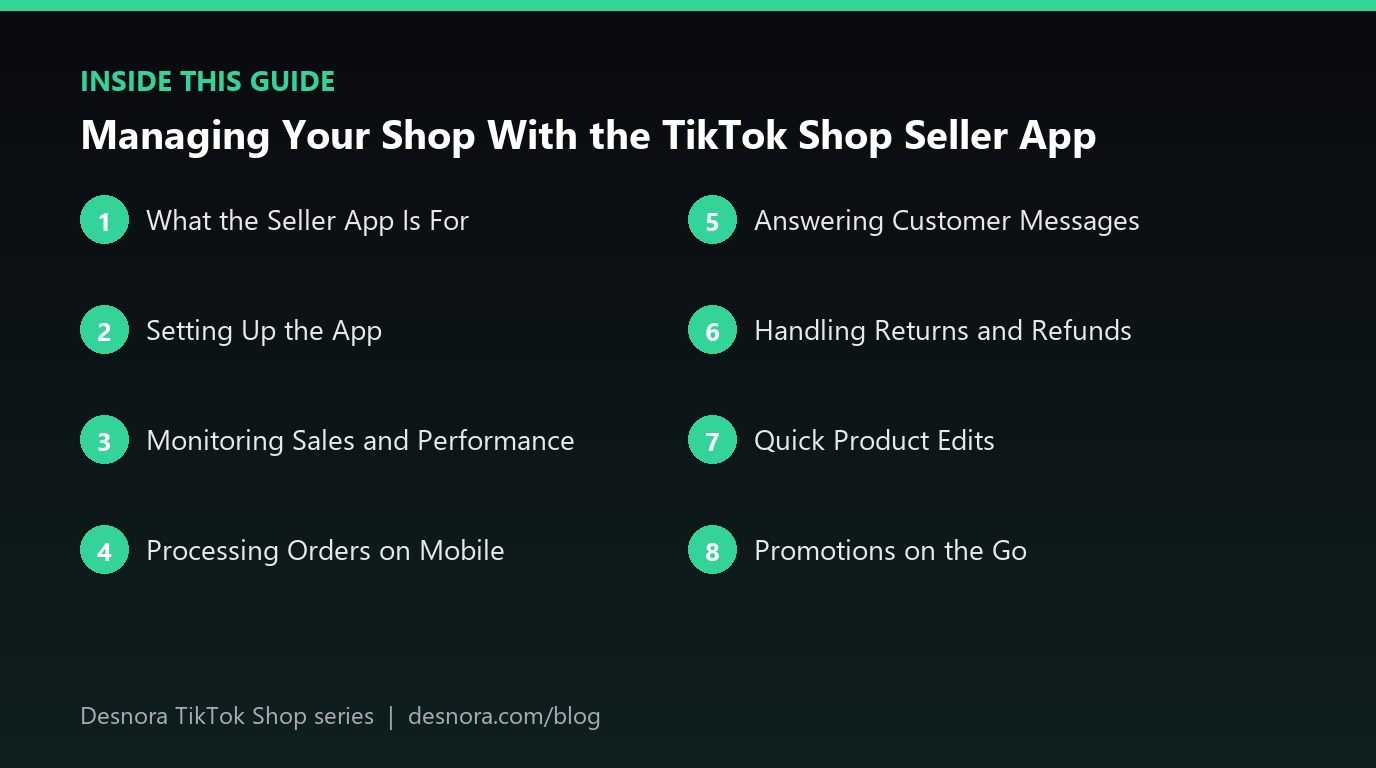
Handling Returns and Refunds
Return and refund requests have response deadlines. The app usually lets you review requests, see photos and respond. Handling them promptly from your phone prevents automatic decisions caused by missed deadlines. Our returns guide explains policy.
Quick Product Edits
You can often edit prices and stock, change product status and check listing issues in the app. This is ideal for urgent actions, such as increasing stock when a product goes viral or pausing a listing with a problem. For detailed editing, such as rewriting descriptions, changing variants or uploading many images, desktop is easier and less error-prone.
Promotions on the Go
Some promotion tools may be available in the app, allowing you to create or check discounts and vouchers. Double-check settings carefully on a small screen, especially dates, discount amounts and limits. For complex campaigns, set up on desktop. Our promotions setup guide covers configuration.
LIVE and Content Tools
Depending on market, the app may help with LIVE management, such as preparing product lists or monitoring live sales. Producers often use a second phone or tablet to manage pinning and monitor stock during streams. Our LIVE technical setup guide covers team roles.
Notifications Worth Enabling
- New orders and orders approaching dispatch deadlines.
- Buyer messages.
- Return and refund requests.
- Low stock alerts, where available.
- Policy violations and account health alerts.
- Campaign invitations and deadlines.
Avoid turning everything on if it causes alert fatigue; focus on what needs fast action.
Security on Mobile
Phones are easily lost or borrowed. Use a screen lock, keep the operating system and app updated and avoid logging in on shared devices. If a phone with seller access is lost, sign out remotely if possible and change passwords. Be careful of fake seller apps and phishing links; download only from official sources. Our guide to account security covers more.
Using the App for Daily Checks
Many sellers do a quick morning check entirely on the app: sales since yesterday, orders approaching dispatch deadlines, unanswered messages, pending returns and new notifications. It takes a few minutes and catches most urgent issues before the working day starts. A similar check in the evening covers anything that arrived during the day. Our daily and weekly checklist lists what to look at.
Sharing Responsibility Out of Hours
Being reachable on a phone should not mean one person is on call forever. Set up a simple rota for evenings and weekends, so each team member knows when they are responsible for checking the app. Agree what counts as urgent, such as a viral spike, a policy notice or an angry customer, and what can wait until the next working day. Clear rules prevent burnout and missed issues alike.
Keeping the App Updated
Seller app features change frequently, and older versions may lack tools or behave unexpectedly. Turn on automatic updates or check for updates weekly. After a major update, spend a few minutes exploring changed menus so you are not hunting for a button during an urgent moment. If something does not work as expected in the app, check whether the same task works on desktop before contacting support.
What Is Still Better on Desktop
- Bulk uploads and bulk edits.
- Creating complex listings with many variants and images.
- Detailed analytics and data exports.
- Finance reconciliation and statements.
- Account settings, user management and integrations.
- Printing labels and packing documents.
A Worked Example: A Weekend Viral Moment
On a Saturday evening, a creator's video featuring a brand's water bottle takes off. The founder sees an order spike notification on the seller app, checks stock and increases the online quantity from the reserve the warehouse confirmed. They reply to a handful of buyer questions about colours, pause one variant that is nearly out of stock and message the warehouse to schedule extra packers for Monday. Everything is handled from a phone in under thirty minutes, and on Monday the team uses desktop to update forecasts and creator plans.
Tablets and Larger Screens
If your team relies heavily on mobile, a tablet can be a good middle ground. The larger screen makes reading order details, reviewing return photos and checking promotion settings easier, while staying portable for the warehouse floor or LIVE set. Some sellers mount a tablet at the packing station to check orders and messages without walking back to a desk, which keeps response times low during busy packing sessions.
Seller App Checklist
- Install the official app and log in with your own account.
- Enable two-factor authentication and a screen lock.
- Turn on key notifications.
- Agree who monitors messages out of hours.
- Use the app for urgent actions, desktop for complex tasks.
- Double-check promotion settings on small screens.
- Remove access from lost or old devices.
Desnora provides day-to-day TikTok Shop management for brands. Explore our TikTok Shop services or get in touch.
Frequently Asked Questions
Is there a TikTok Shop seller app?
Many markets offer an official seller mobile app. Check your app store and Seller Center for the official version.
Can I process orders on my phone?
Often yes, including viewing orders and arranging shipment, though printing labels usually needs a computer.
Can I answer customer messages in the app?
Yes. The app is ideal for fast replies and quick responses.
Can I edit products in the seller app?
Quick edits such as price, stock and status are usually possible. Complex edits are easier on desktop.
Is the seller app secure?
Yes, when downloaded from official sources and used with screen locks, updates and two-factor authentication.
Can team members use the app?
Yes, each with their own sub-account login.
Which notifications should I enable?
New orders, deadlines, messages, returns, stock alerts, violations and campaign deadlines.
Can I create promotions in the app?
Some markets offer promotion tools in the app. Check settings carefully on small screens.
What tasks need desktop?
Bulk operations, complex listings, detailed analytics, finance, settings and label printing.
What if I lose my phone?
Sign out remotely if possible, change passwords and remove the device from trusted devices.
Can I manage LIVE from the app?
Depending on market, some LIVE management features are available on mobile.
Is the seller app the same as the TikTok app?
No. The TikTok app is for content and shopping; the seller app is for managing your shop.
Should one person always monitor the app?
No. Set an evening and weekend rota and agree what counts as urgent, so responsibility is shared.
Why does a feature work on desktop but not in the app?
The app may not support every feature yet or may need updating. Try desktop, update the app and then contact support.