Every seller eventually meets an error message in Seller Center: a product that will not save, a label that will not print, an integration that stops syncing or a payout on hold. Error messages are often short and technical, and the fix is not always obvious. Most problems, though, come from a small set of causes that are quick to check once you know where to look.
This guide groups the most common errors by area, explains likely causes and suggests fixes. Exact error wording differs by market and changes over time, so use these as starting points and check the help centre for your specific message. When in doubt, contact seller support with screenshots and details.

General Troubleshooting Steps
- Read the full message: note any error code and the field it mentions.
- Refresh and retry: some errors are temporary.
- Try another browser or clear cache: outdated cached pages cause odd behaviour.
- Check notifications and announcements: there may be a known issue or a policy change.
- Search the help centre for the exact message or code.
- Contact support with screenshots, order or product IDs and steps to reproduce.
Product Creation and Editing Errors
- Required field missing: an attribute, image, weight or other required field is empty. Scroll through the form; required fields are usually marked.
- Category not available: the category is restricted or needs qualification. See our guide to brand and category qualifications.
- Brand not authorised: the brand must be registered or authorised before use.
- Prohibited words detected: remove promotional, medical or restricted words from title or description.
- Price outside allowed range: check for typos and decimal errors.
- Duplicate product or SKU: the same product or seller SKU code already exists.
Image and Video Upload Errors
- File too large: compress the image or video below the size limit.
- Unsupported format: convert to an accepted format such as JPG, PNG or MP4.
- Resolution too low: use larger originals rather than upscaling.
- Wrong aspect ratio: crop to a supported ratio.
- Upload stuck: check your connection, try a different browser or upload fewer files at once.
Our image and video specs guide lists requirements.
Bulk Upload Errors
Bulk uploads fail most often because of outdated templates, missing required columns, invalid attribute values, broken image links, duplicate SKUs or numbers formatted as text. Download the error report, fix the listed rows and re-upload only those. Our bulk upload guide explains each case.
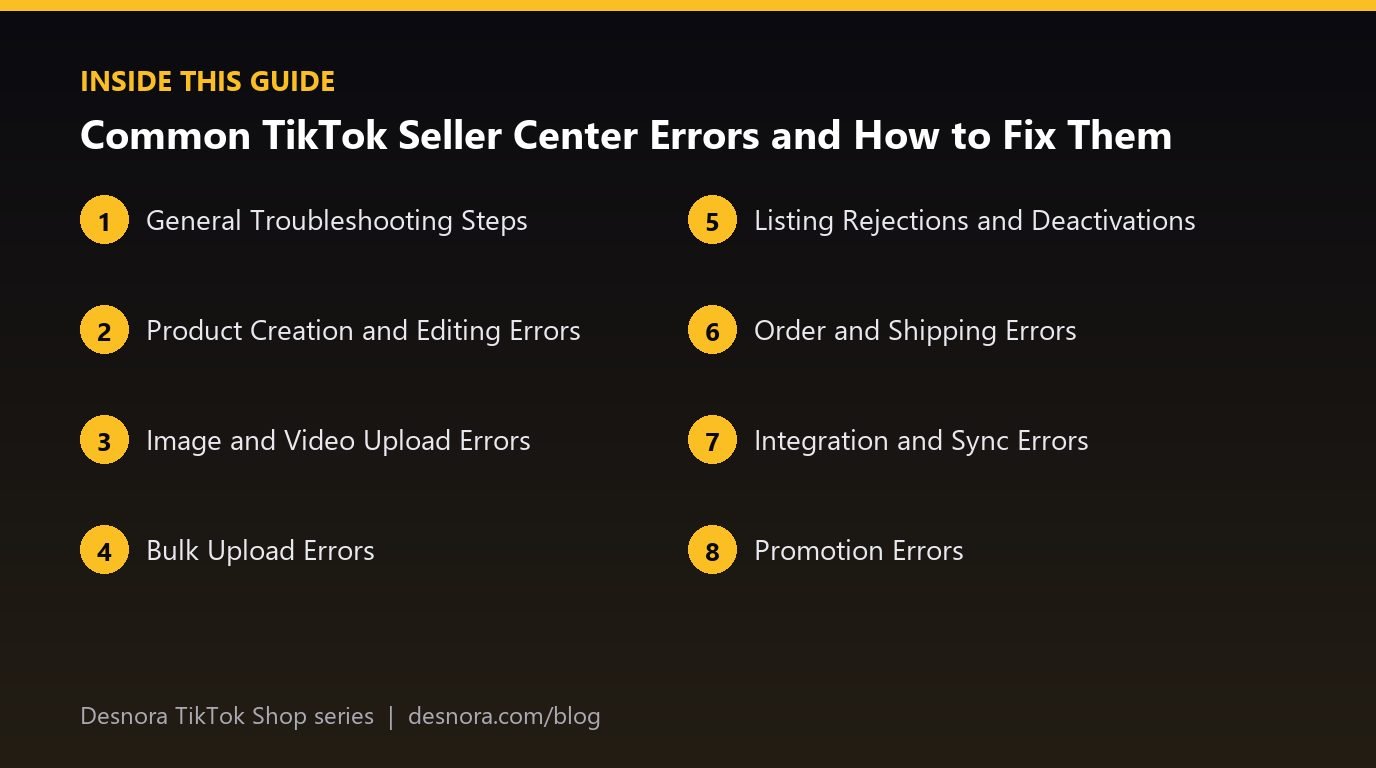
Listing Rejections and Deactivations
Rejections and deactivations come with reasons. Fix the specific issue and resubmit, or appeal if you believe it was a mistake. Do not resubmit unchanged listings repeatedly. Our listing review guide covers common reasons.
Order and Shipping Errors
- Cannot arrange shipment: the order may be on hold, cancelled or already shipped. Check status.
- Label generation failed: check the warehouse address, package weight and dimensions, shipping template and buyer address.
- Carrier not supported: choose a carrier from the supported list for seller shipping.
- Invalid tracking number: check for typos, the right carrier and that the number is not reused.
- Pickup not scheduled: confirm pickup settings and time windows.
Our guides to carriers and tracking and shipping templates explain fixes.
Integration and Sync Errors
- Authorisation expired: reconnect or reauthorise the app.
- SKU not mapped: seller SKU codes must match between systems.
- Category mapping missing: map product types to TikTok Shop categories.
- Stock not updating: check sync frequency, location mapping and which system owns stock.
- Orders not importing: check order status filters and the connection.
See our guides to Shopify integration and the Open API.
Promotion Errors
- Discount not allowed: the discount may be below the minimum or the price changed recently.
- Product already in another promotion: some promotions cannot overlap.
- Insufficient stock: campaign stock must be available.
- Promotion not showing: check time zone, start time and product status.
Our promotions setup guide covers each tool.
Finance and Payout Errors
- Payout on hold: bank details, tax information or verification may be incomplete, or the account may be under review.
- Bank account verification failed: check that the name matches the business and details are correct.
- Unexpected deductions: check statements for fees, refunds, adjustments and penalties.
Our payouts guide explains settlements.
Account and Login Errors
- Verification code not received: check the phone or email on file, spam folders and signal; wait before requesting again.
- Account linking failed: the TikTok account may be linked elsewhere, in a different region or ineligible. See our guide to linking accounts.
- Permission denied: your sub-account may lack access; ask the main account holder.
- Account restricted: check account health for violations and appeal options.
LIVE and Content Errors
- Cannot go live: the account may not meet LIVE eligibility requirements, may have a restriction or the app may need updating.
- Product cannot be added to LIVE: the product may be inactive, out of stock or not linked to the account.
- Stream key not available: desktop streaming may not be enabled for your account or market.
- Video product link missing: the account may not be linked or eligible, or the product may be unavailable.
Our guides to LIVE technical setup and product tagging cover these cases.
Affiliate Errors
- Product not visible to creators: check it is included in an open or targeted plan and that the listing is active.
- Invitation not received: the creator may not be eligible or the invitation may have expired.
- Sample request expired: requests have deadlines; respond sooner next time.
- Commission change not applied: changes may take effect after a notice period.
Our Affiliate Center setup guide explains plans and samples.
Keeping an Internal Fix Log
Every error your team solves is knowledge worth keeping. Record the error message, the cause and the fix in a shared document. Over months, this log becomes the fastest troubleshooting resource you have, because it reflects your exact products, integrations and market. New team members can solve problems without waiting for the one person who remembers how it was fixed last time.
Getting Better Help From Support
Support resolves issues faster when you give complete information: a clear description, error message text or code, screenshots, product or order IDs, the time it happened and what you already tried. Keep the ticket number and follow up in the same thread rather than opening duplicates.
Preventing Errors
- Keep a clean master catalog with consistent SKU codes.
- Download fresh templates and read policy updates.
- Check integrations weekly.
- Keep bank, tax and business details up to date.
- Train team members on common tasks and errors.
A Worked Example: Labels Failing for One Product
A seller finds that labels fail only for orders containing a new speaker. Other products ship fine. Checking the product, they see the package weight was left at zero and the product contains a lithium battery that their chosen service does not accept. They enter the correct weight, mark the battery information required by the category and assign the product to a shipping template with a carrier that accepts batteries. Labels then generate normally.
When the Problem Is on the Platform Side
Sometimes the error is not caused by anything you did. Platform outages, maintenance windows and bugs after updates do happen. If many sellers report the same issue at the same time, or the error appears across products and browsers that worked yesterday, check announcements and seller communities, record what you see with timestamps and contact support. Avoid making large changes to your listings while the platform is unstable, because you may create new problems that remain after the original issue is fixed.
Troubleshooting Checklist
- Read the full error and note codes.
- Refresh, retry or change browser.
- Check required fields, formats and limits.
- Check statuses, settings and mappings.
- Search the help centre.
- Contact support with complete details.
- Record the fix for next time.
Desnora troubleshoots and runs Seller Center operations for brands. Explore our TikTok Shop services or contact us.
Frequently Asked Questions
Why will my product not save in Seller Center?
Usually a required field is missing, a value is invalid or the category or brand needs authorisation.
Why does my image upload fail?
The file may be too large, in an unsupported format, too low resolution or the wrong aspect ratio.
Why can I not print a shipping label?
Check warehouse address, package weight and dimensions, shipping template, carrier restrictions and buyer address.
Why is my payout on hold?
Bank, tax or verification details may be incomplete, or the account may be under review.
Why are my products not syncing from Shopify?
Common causes are expired authorisation, unmapped SKUs or categories and stock location issues.
Why can I not create a promotion?
The discount may be below the minimum, the product may be in another promotion or stock may be insufficient.
Why am I not receiving verification codes?
Check the contact details on file, spam folders and signal, and wait before requesting another code.
What should I send to seller support?
Error text or code, screenshots, IDs, timing and what you already tried.
Can browser problems cause errors?
Yes. Clearing cache or trying another browser fixes many display and upload problems.
Why does my tracking number show as invalid?
It may have a typo, the wrong carrier selected or be reused from another order.
How do I avoid repeated errors?
Keep clean catalog data, fresh templates, current settings and a record of past fixes.
Where do I find known issues?
In Seller Center announcements and notifications, and in the help centre.
Why can I not go live?
Your account may not meet LIVE eligibility requirements, may have a restriction or the app may need updating.